Start & share a fundraiser
In this guide, we will show you step-by-step how to create your own fundraiser for your favorite organizations and share it with others. By the end, you'll know exactly how to set up, design, and send the link to your fundraiser.
Pro tip
In just a few minutes, you can create your own fundraising campaign for a good cause and share it directly with your friends and family – absolutely no prior knowledge required. This easily turns your dedication to an organization close to your heart into a campaign that inspires even more people to get involved.
What you need
A bcause account that you are logged into
The names of the organization(s) you would like to collect donations for
About 5–10 minutes of time
Optional: an image or motif if you want to customize the look of your fundraising campaign
Step-by-step guide
1. Open the overview and start the fundraising campaign
Log in to your bcause account. In the top right corner, you will find the "Start fundraising campaign" button. Click on it to begin the creation process.
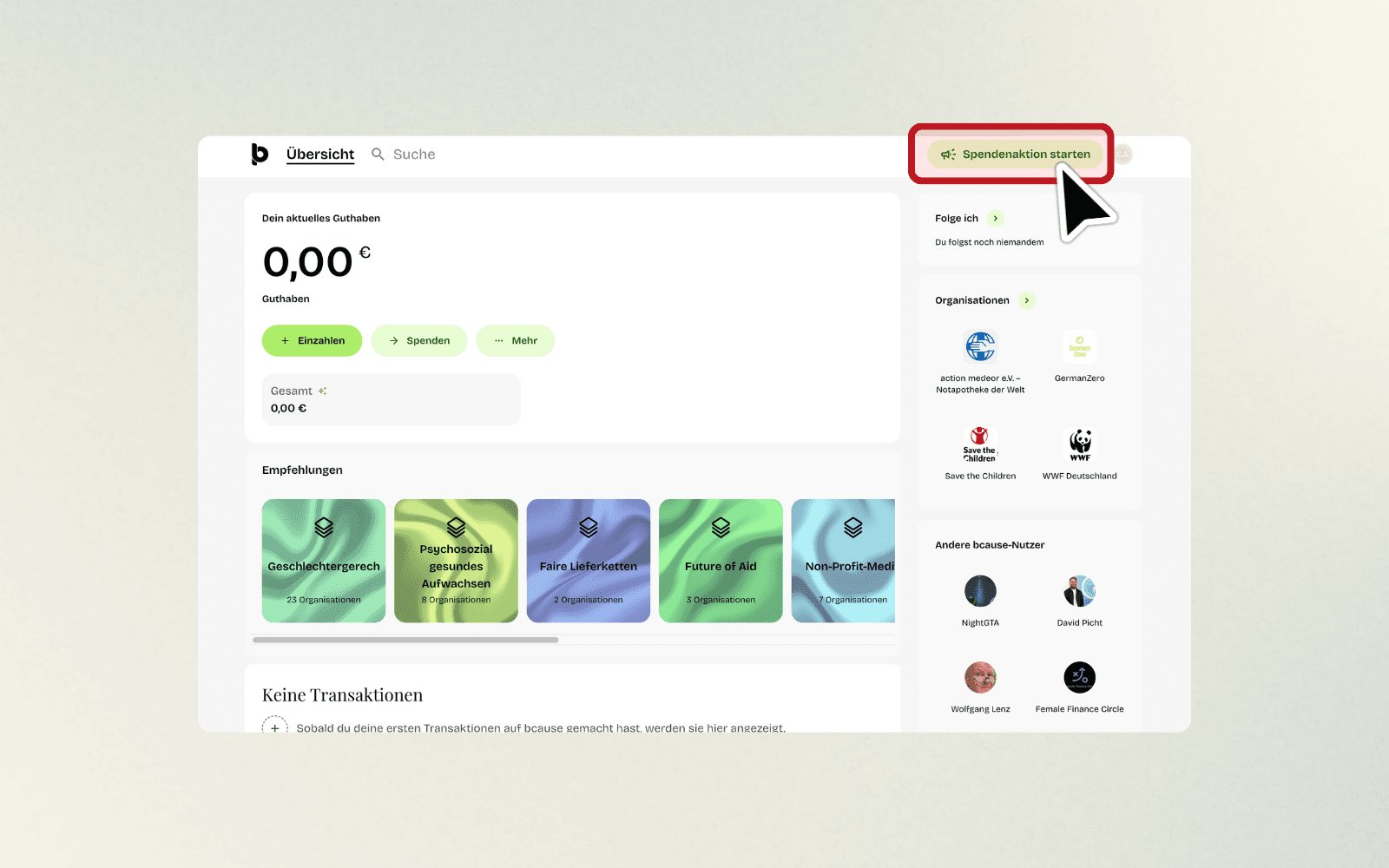
2. Choose who you want to collect donations for
On the next page, you will see "Step 1 of 3 – Recipients". Click in the input field "Select organization(s)" to determine where your money should go.
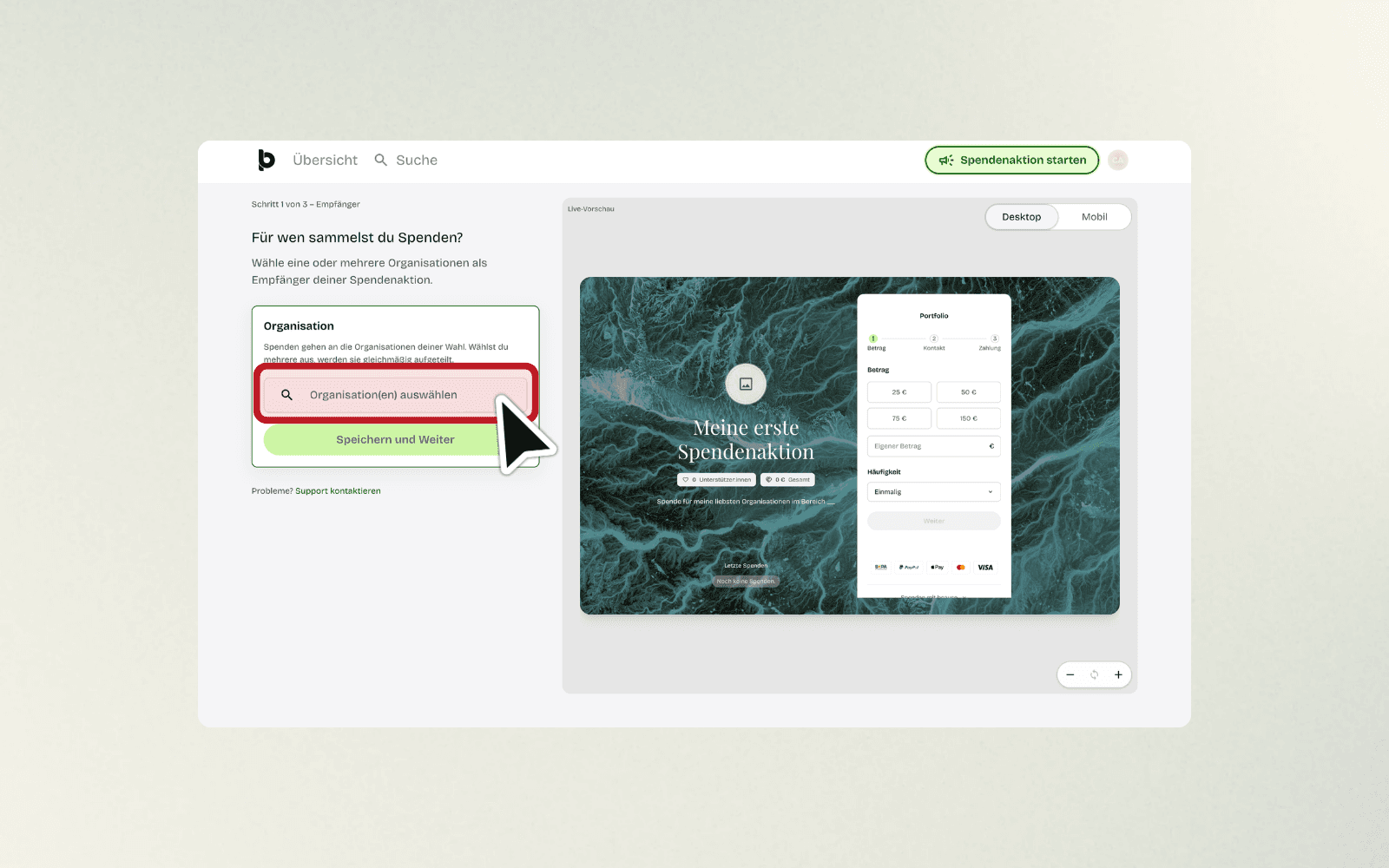
3. Search for the desired organization
Type the name of the organization in the search field, for example "wwf". Matching results will be displayed as a list, such as "WWF Germany" or "A world for tigers foundation".
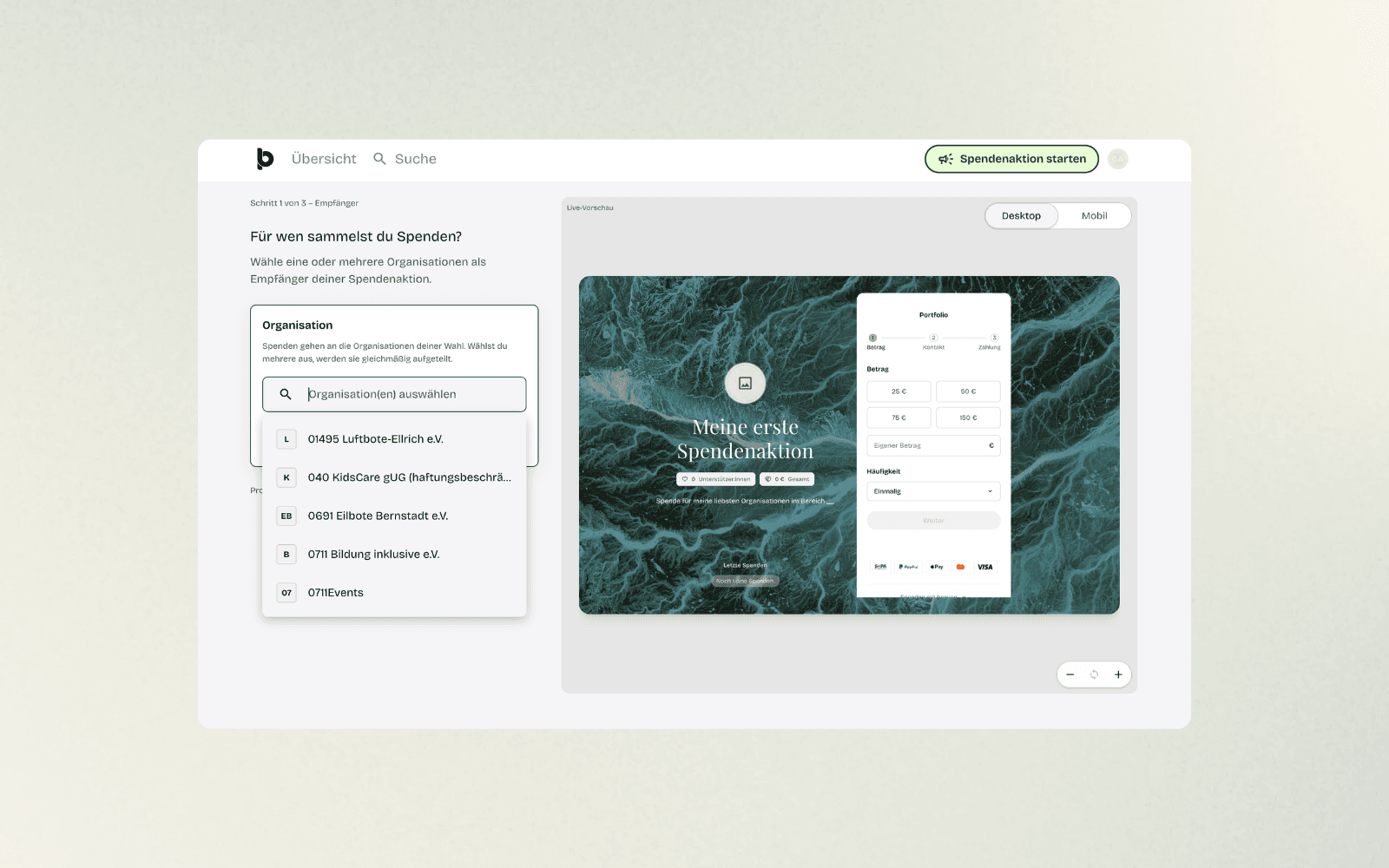
4. Add the desired organization
Click on the organization you wish to support in the results list. It will then appear above the search field in your selection.
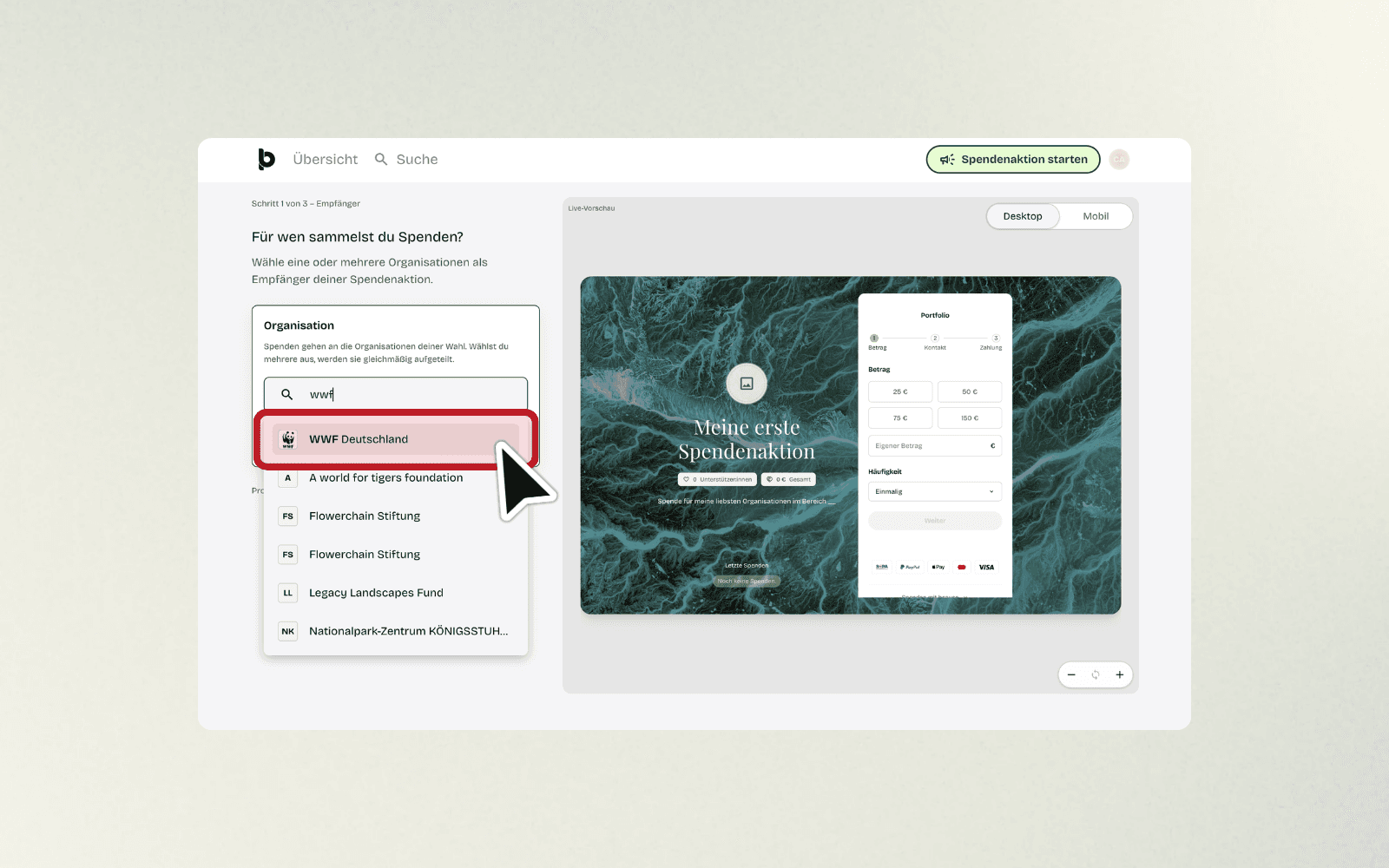
5. Add more organizations and proceed
Repeat the search if you would like to add more organizations, for example "Save the Children". Once your selection is complete, click on "Save and continue".

6. This is how your portfolio is created
If you have selected more than one organization, bcause automatically creates a so-called portfolio. A portfolio bundles your selected organizations so that donations are evenly split among them, and you can easily reuse them directly for a future fundraising campaign.
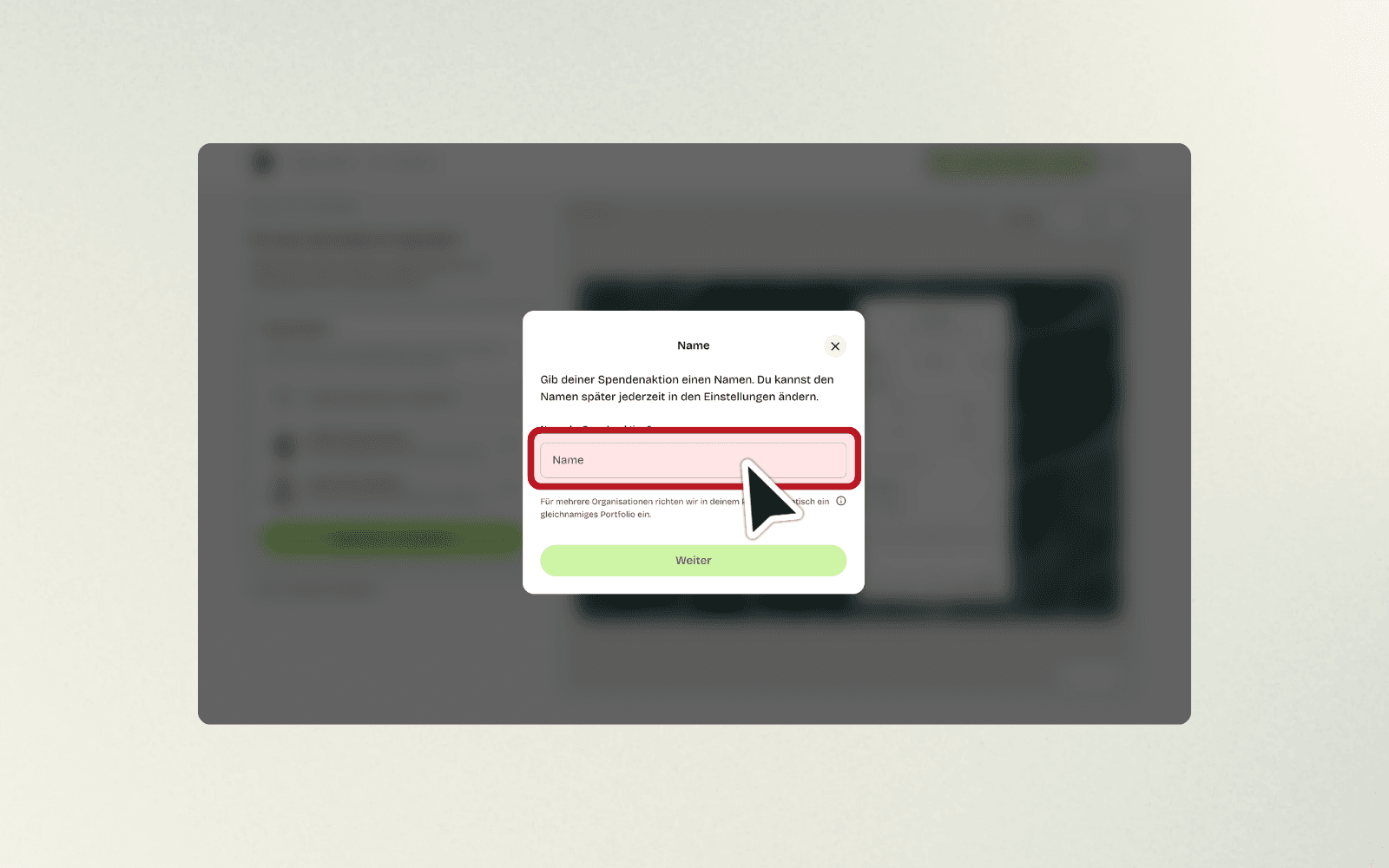
7. Give your fundraising campaign a name
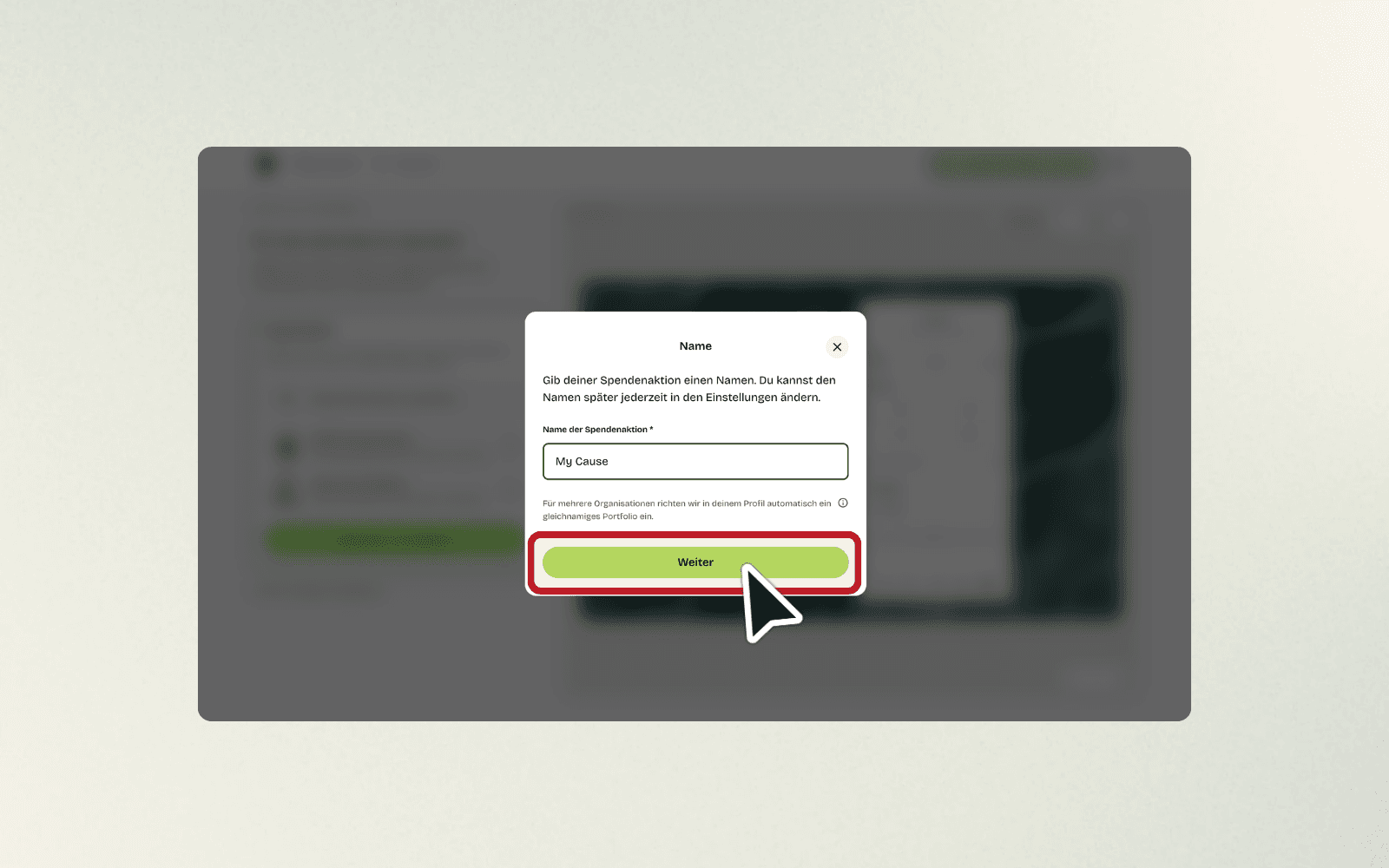
A window titled "Name" opens. Enter an appropriate name in the "Fundraising campaign name" field, for example "My Special Project". Then click "Next".
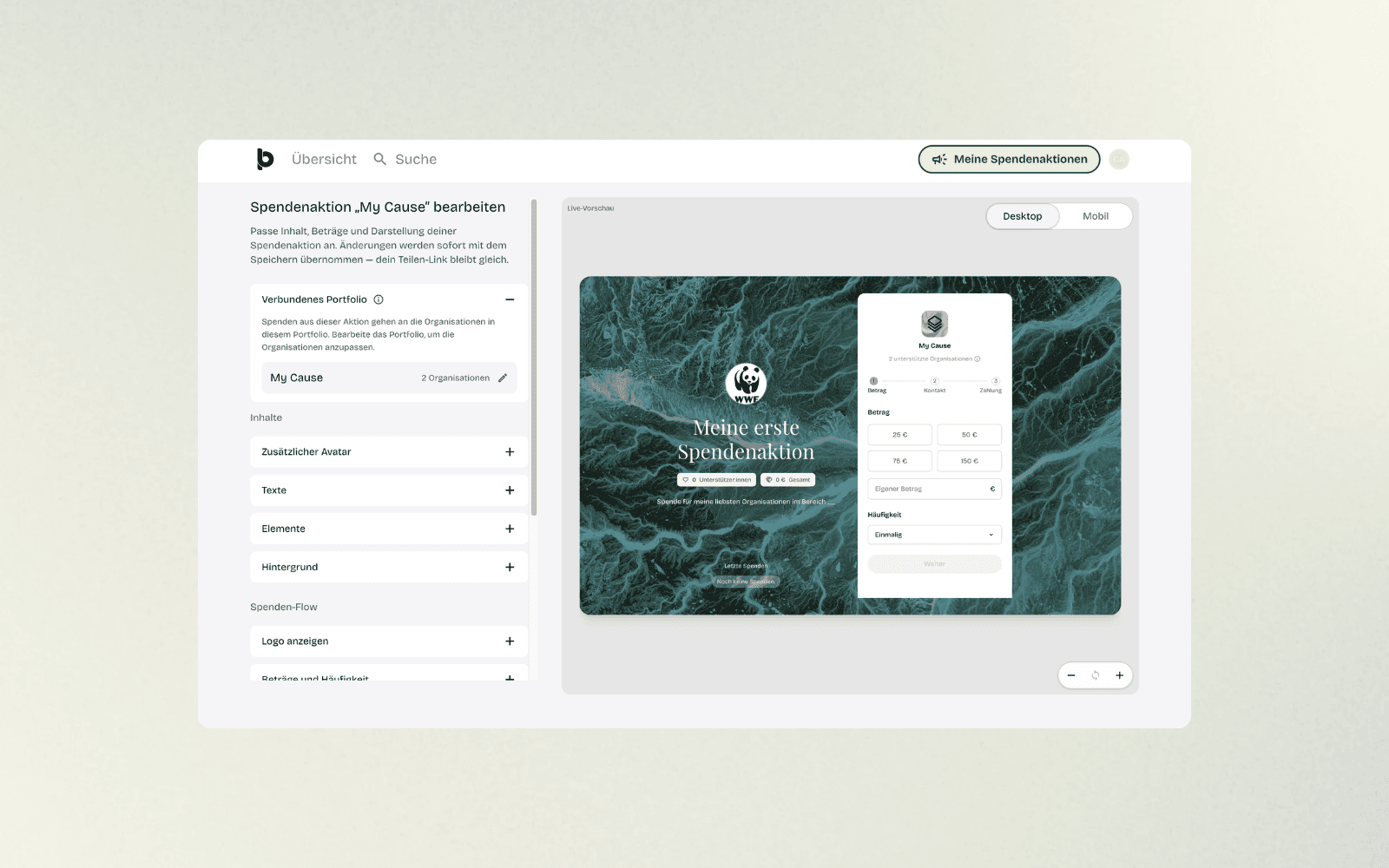
8. Customize the look of your fundraising campaign
Your fundraising campaign has been created, and you land in the editing area. Here, under "Content", you can change things like an additional avatar, texts, elements, and the background. Under "Donation flow", you determine whether your logo is displayed, which amounts and frequencies are suggested, and which colors are used.
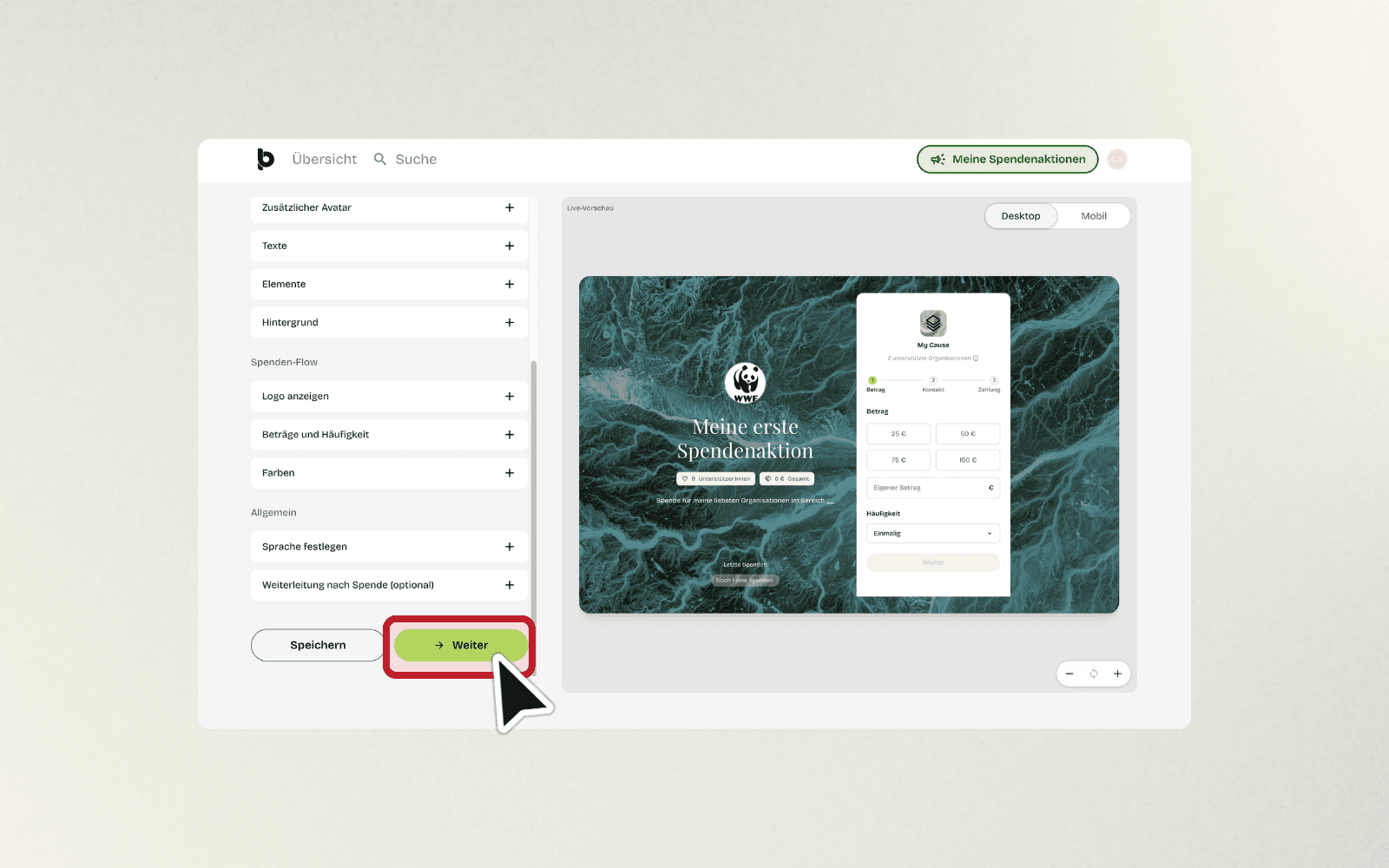
9. Complete the design
Once you are satisfied with the look of your fundraising campaign, scroll down and click "Next" in the bottom right. If you want to temporarily save changes, use the "Save" button.
10. Share your fundraising campaign
You will arrive at the "Link" view. Here you will find a QR code as well as the link to your fundraising campaign. Click on "Copy link" to copy the link to your clipboard and share it, for example, via email or on social networks. If you would like to try out the donation process first without any obligation, you can activate the "Test mode".
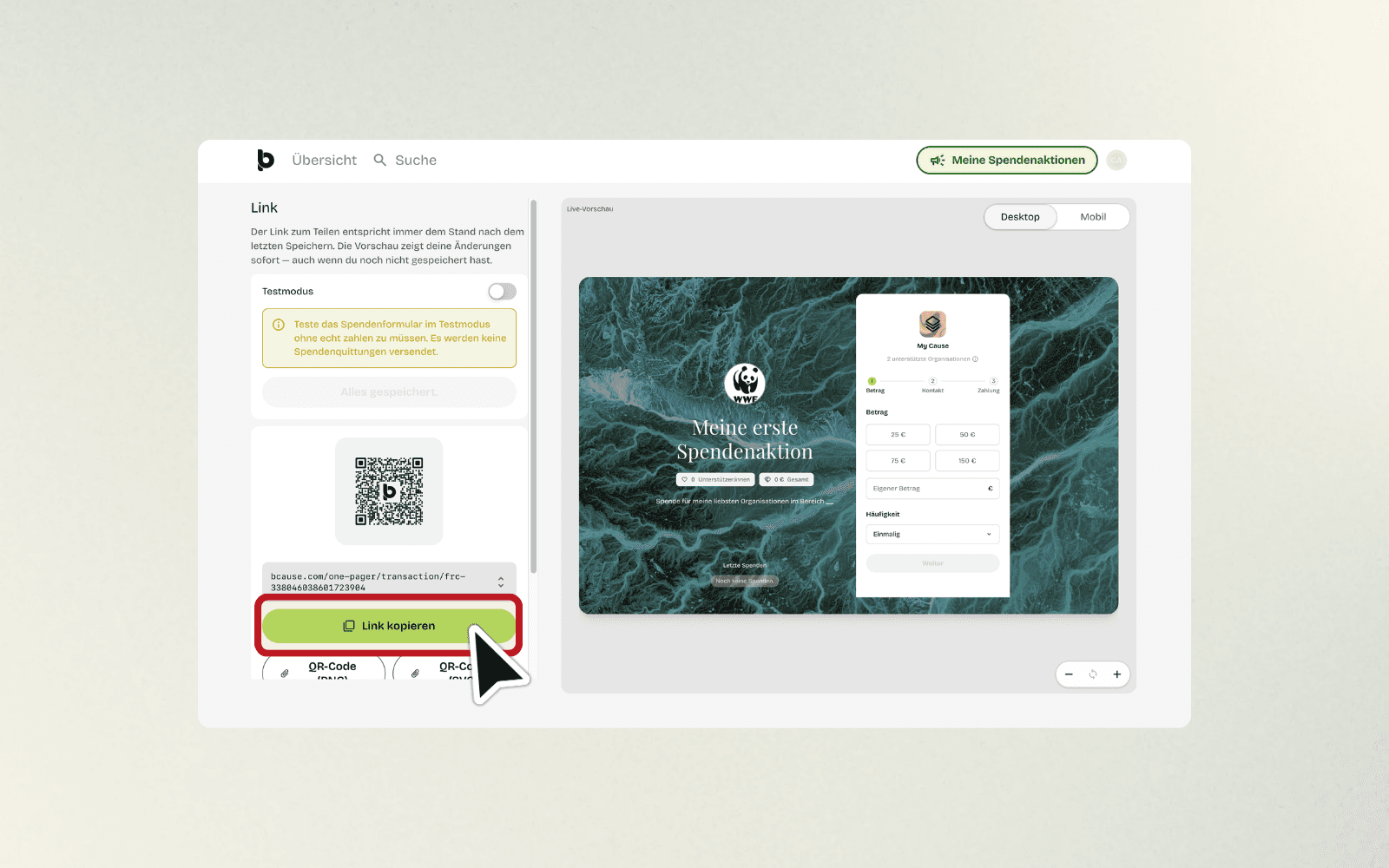
11. Find your fundraising campaigns again
Click on "My fundraising campaigns" in the top right corner to return to your overview at any time.
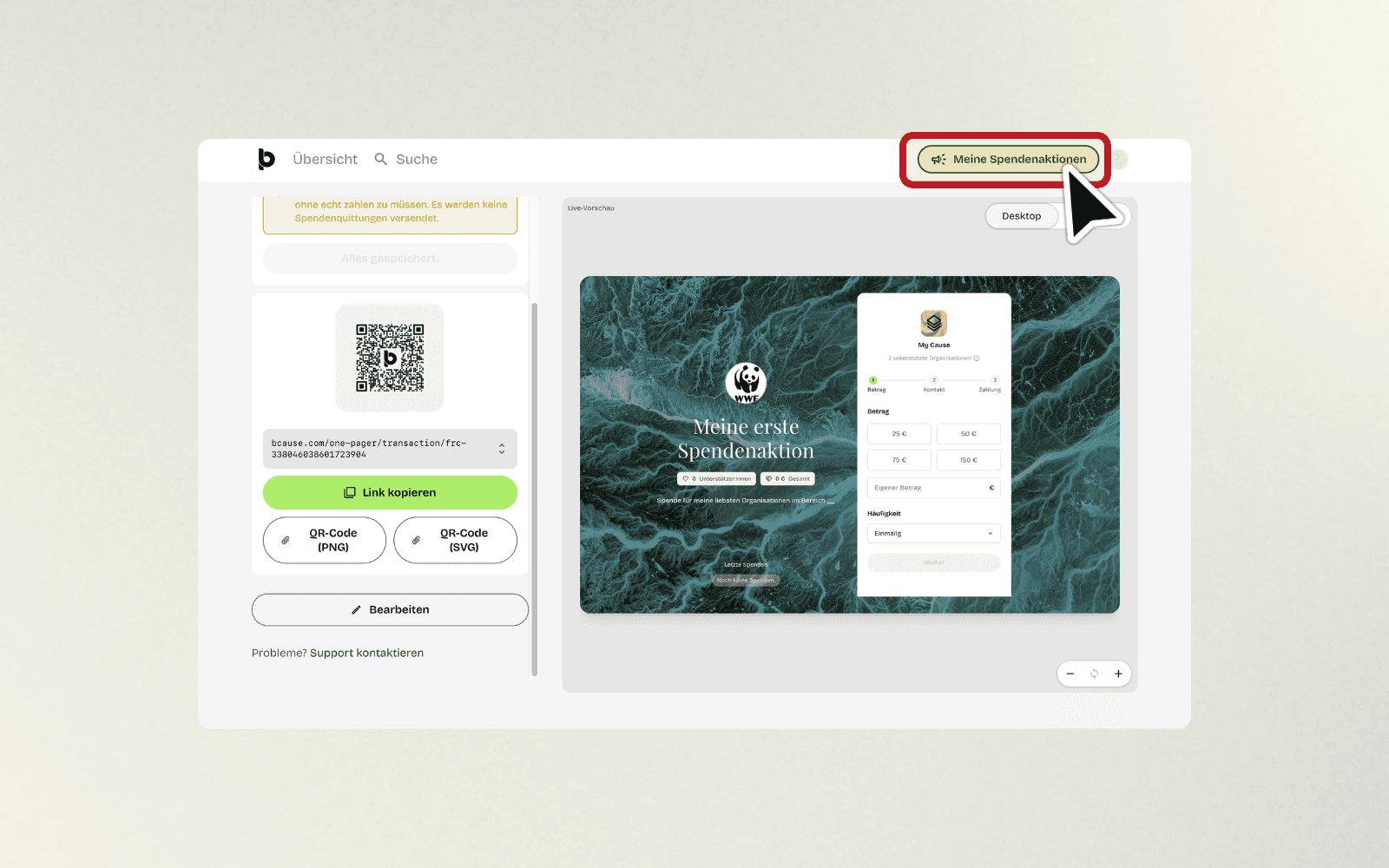
12. Keep track of all your fundraising campaigns
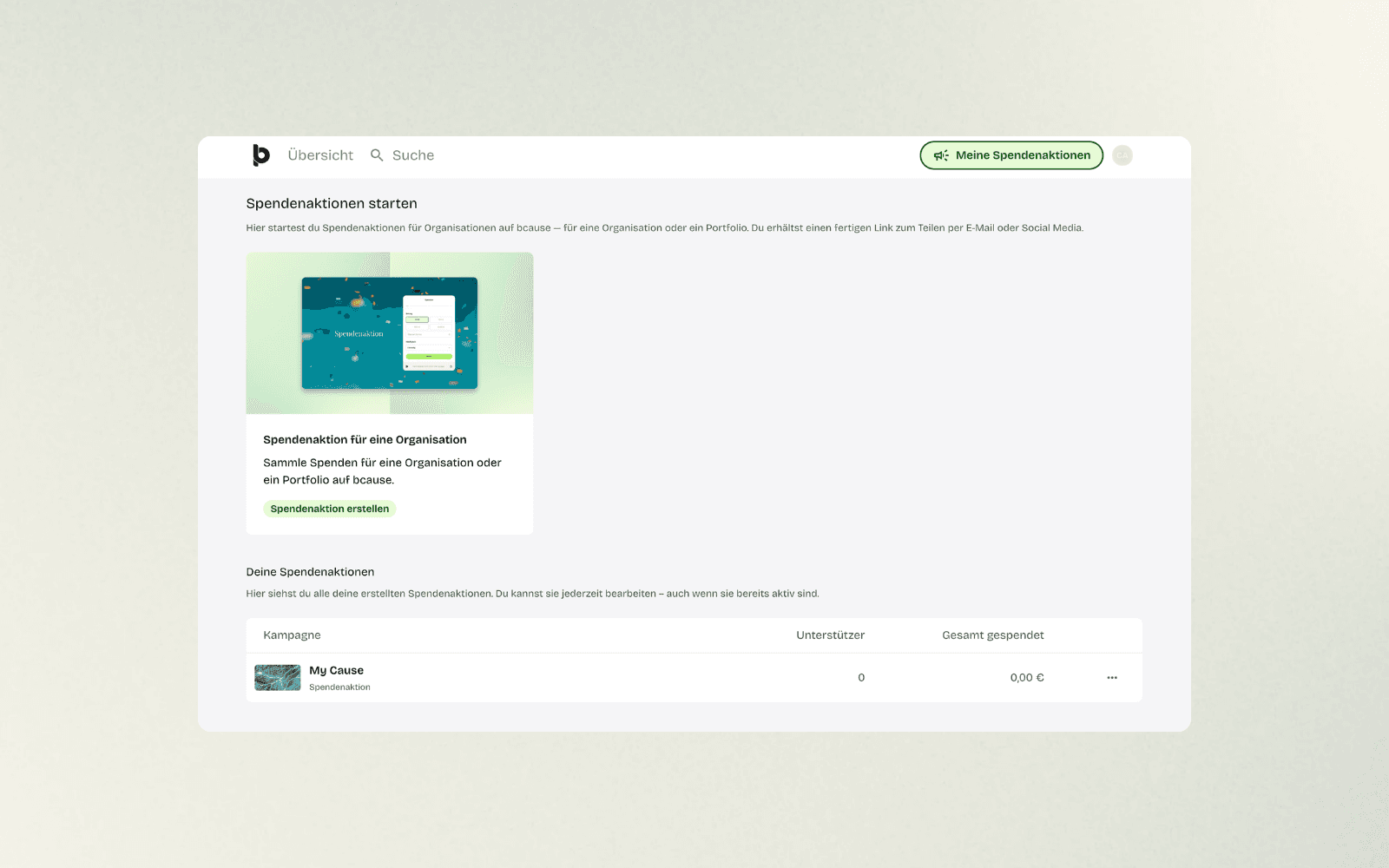
In the overview, you will see the option "Create fundraising campaign" at the top to start a new campaign. Below that, in the "Your fundraising campaigns" area, you will find a list of all your previously created fundraising campaigns, along with details on supporters and the total amount of donations collected.
"}
FAQs: Frequently Asked Questions
What happens if I select multiple organizations for my fundraiser?
If you select multiple organizations, the donations will automatically be split equally among them. In addition, bcause will create a portfolio with these organizations that you can reuse for future fundraising campaigns.
Can I still edit my fundraiser later on?
Yes. You can open and edit your fundraiser at any time via "My Fundraisers", even if it is already active and has been shared. Your sharing link will always remain the same.
How do I test my fundraiser before sharing it with others?
Activate the "Test mode" in the "Link" section. This allows you to try out the entire donation process without real money being debited and without a donation receipt being sent.