How to deposit money
This guide shows you step-by-step how to deposit money into your cash account at bcause. Following these instructions, you can top up your balance and start donating immediately.
Pro tip
With a topped-up balance, you save yourself from having to enter payment details for every donation, your donations go through faster, and you can keep track of your donation budget. Especially practical: you can flexibly decide how much to deposit, and your balance remains valid indefinitely.
What you need
An active bcause account (register for free)
A payment method (credit card, PayPal or SEPA direct debit)
Approx. 5 minutes of time
Step-by-step instructions
Step 1: Navigate to the overview and start the deposit
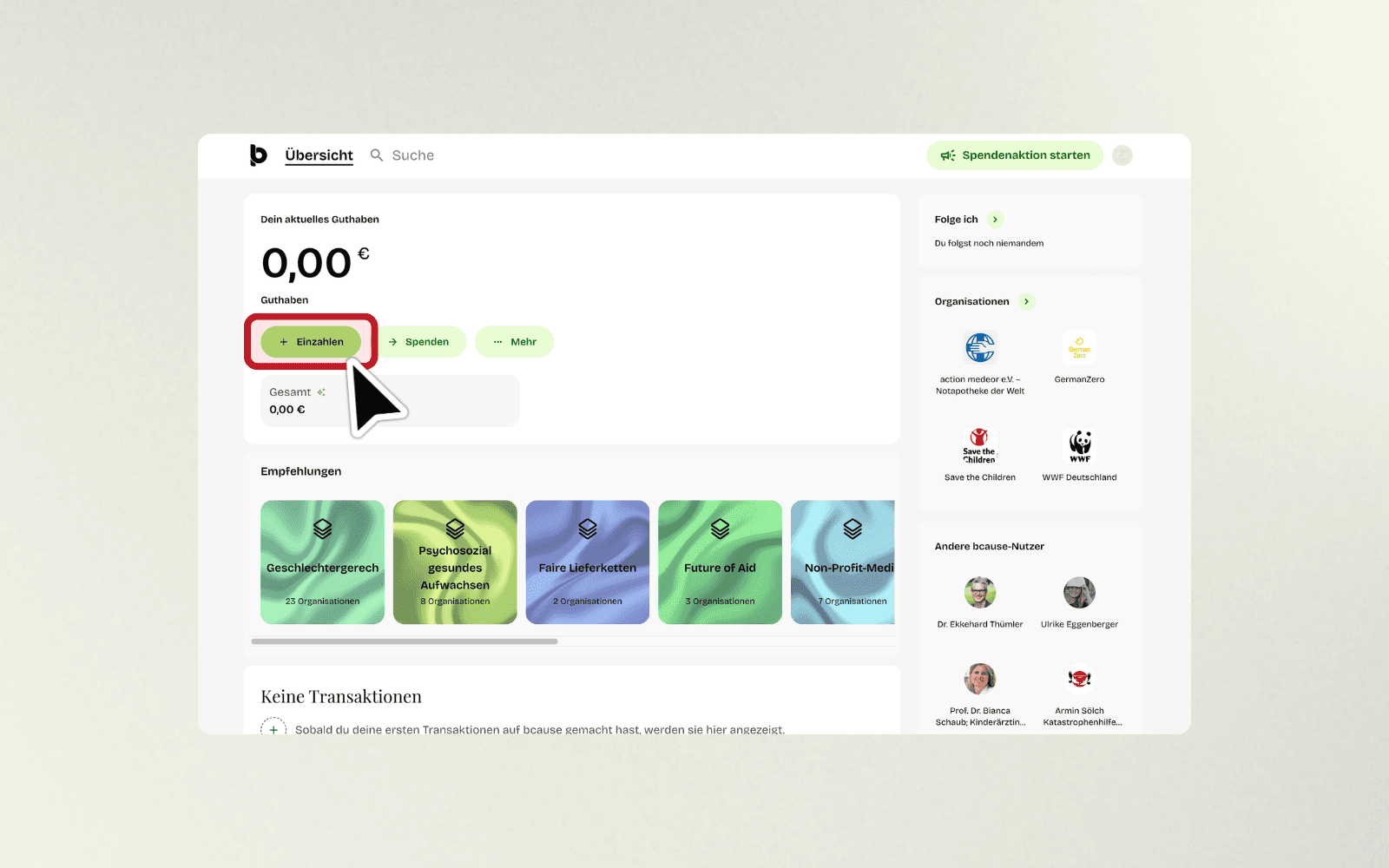
On the home page, click on the green button “Deposit” in the “Your current balance” section. This button opens the deposit form.
Step 2: Choose the amount
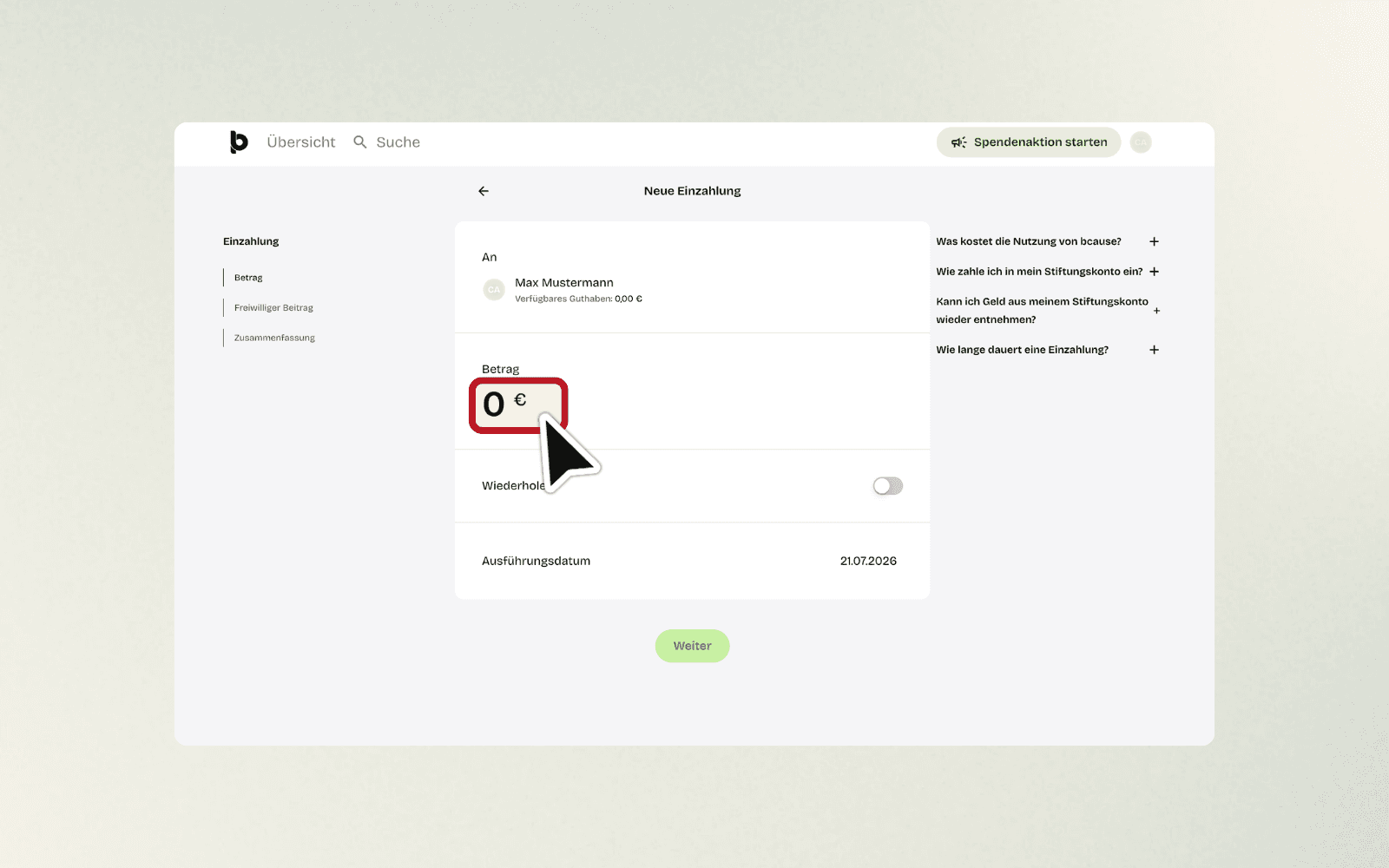
You will now see the “New Deposit” page. Under “Amount” you will find various predefined amounts to click on (e.g. €10, €25, €50 or more). Click on the amount you want to deposit.
If you prefer a different amount, click on the input field and type in your desired amount (e.g. “75” for 75 Euros).
Step 3: Enter your amount and click “Next”
After you have selected your amount, click on the green button “Next” to continue.

Step 4: Opt for a voluntary additional contribution (optional)
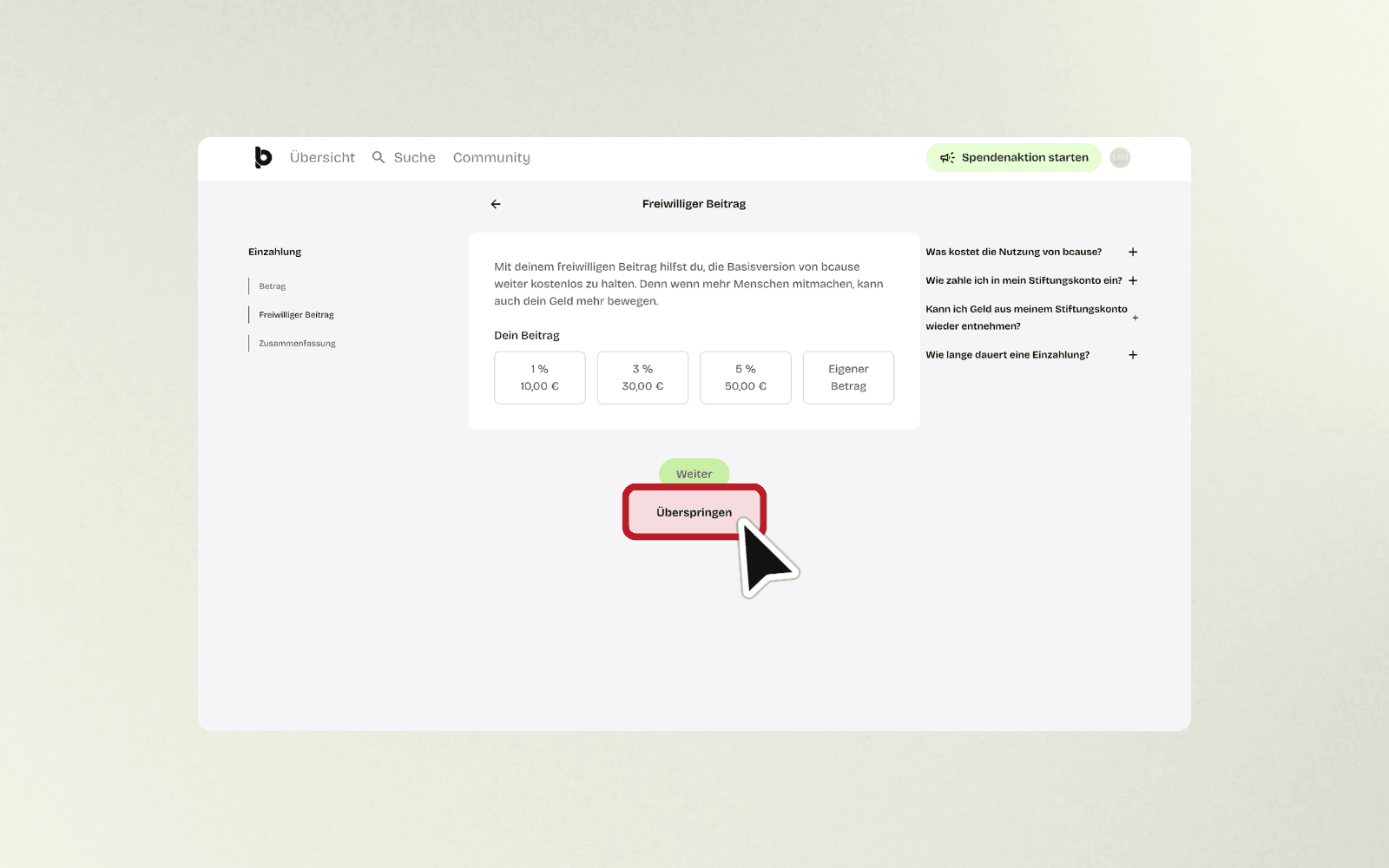
You will now be taken to the “Voluntary Contribution” page. Here you have the opportunity to donate an additional small amount to keep bcause free.
Your options:
1% (e.g. €10 extra)
3% (e.g. €30 extra)
5% (e.g. €50 extra)
Custom amount (type in an individual amount)
If you do not wish to make an additional contribution, click on “Skip” and continue.
Step 5: Review the summary
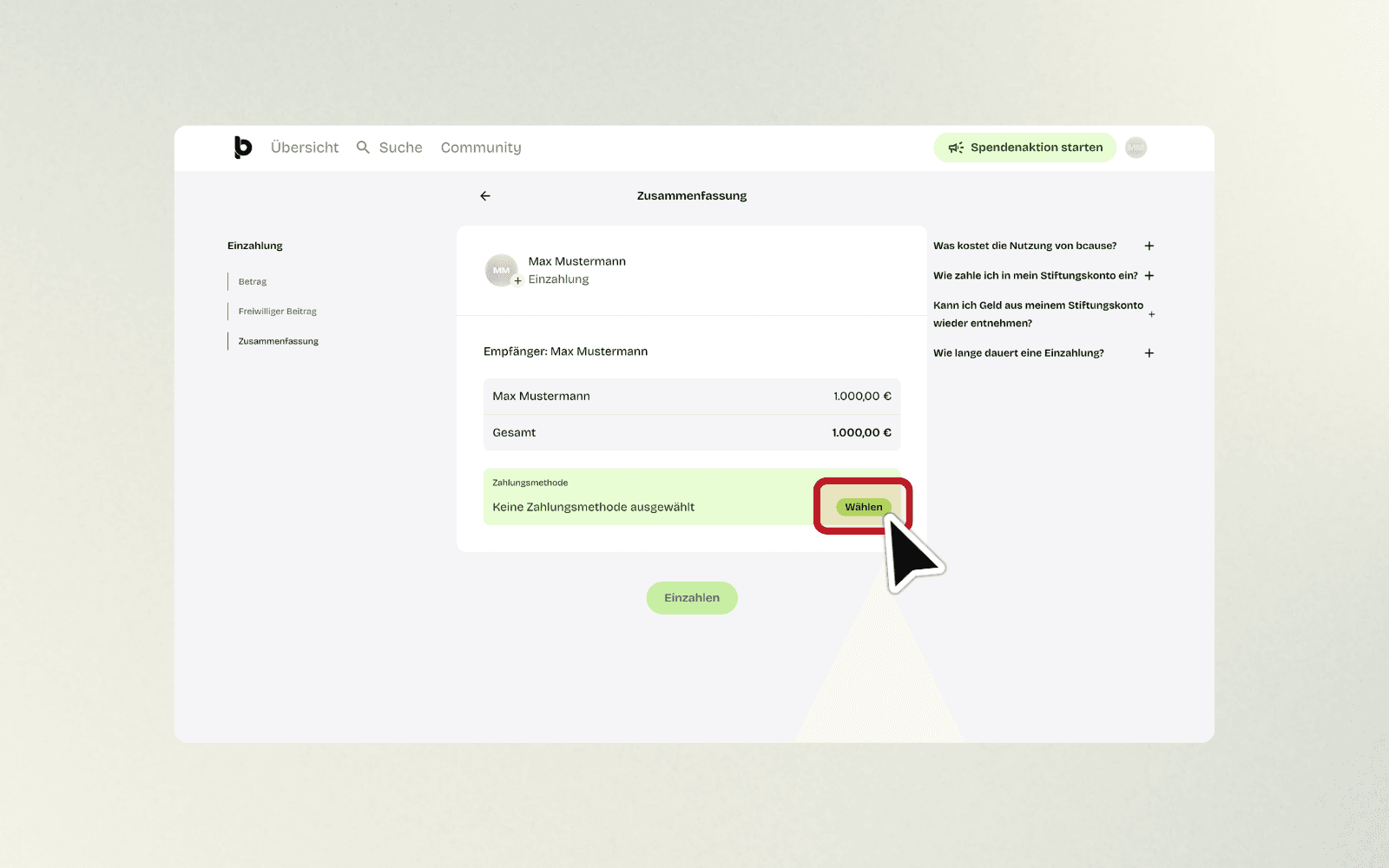
You will now see an overview of all information:
Recipient: Your name (e.g. Max Mustermann)
Amount: The total amount you are depositing
Total: The sum including optional additional contributions
Payment method: You still need to select a method here

Step 6: Choose your payment method
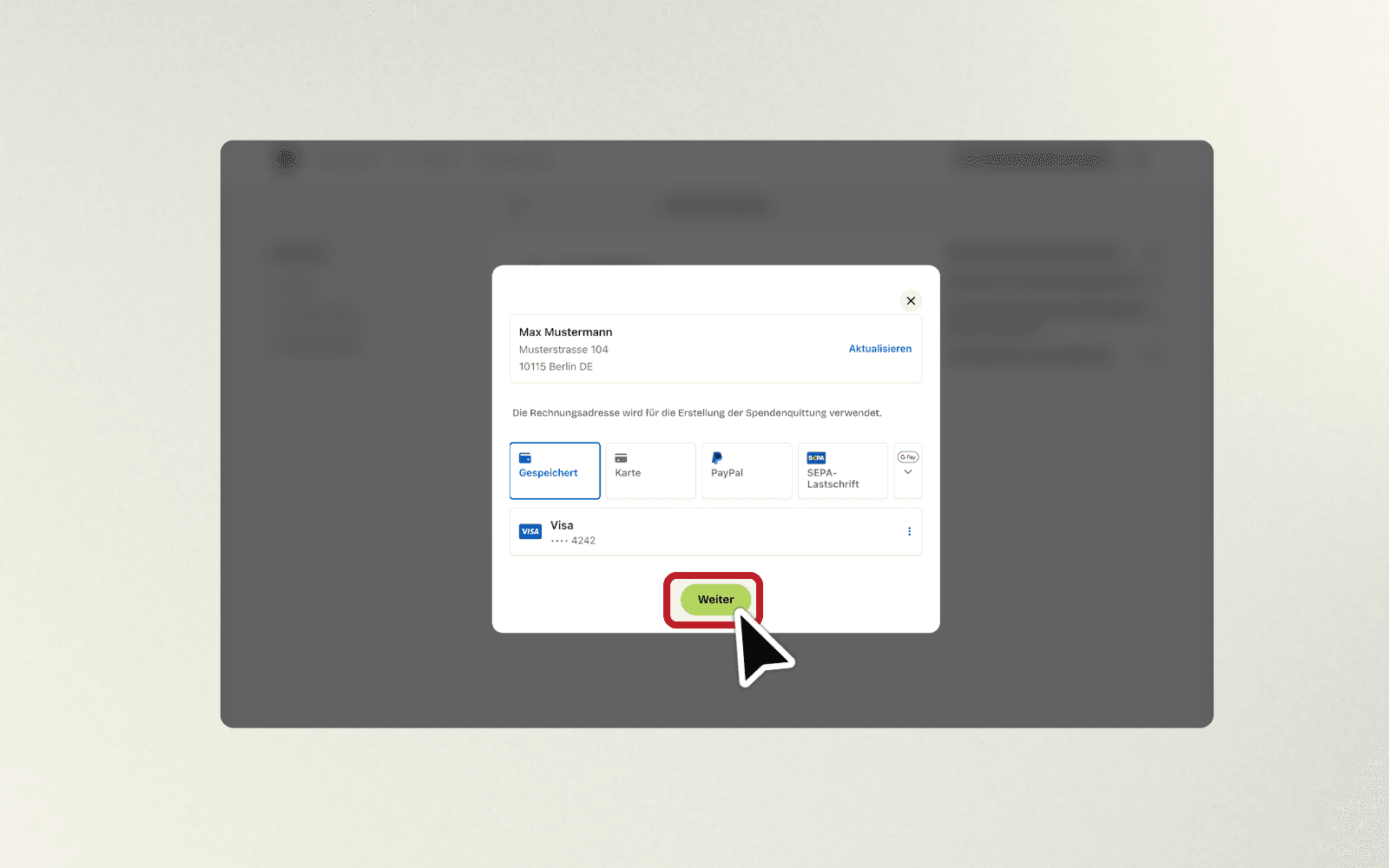
Click on the button “Select” in the “Payment Method” section. A modal window opens with several options:
Saved (card already saved)
Card (new credit card)
PayPal (PayPal account)
SEPA Direct Debit (bank details)
Google Pay (if available)
Choose your preferred payment method. If you already have a card saved, it will be displayed under the respective method (e.g., “Visa ••• 4242”).
Step 7: Confirm your address and payment method
In the modal you will see your billing address (e.g. “Max Mustermann, Musterstrasse 104, 10115 Berlin”). Check that this is correct. If necessary, click on “Update” to change it.
Select the desired payment method and click “Next”.
Step 8: Confirm the deposit
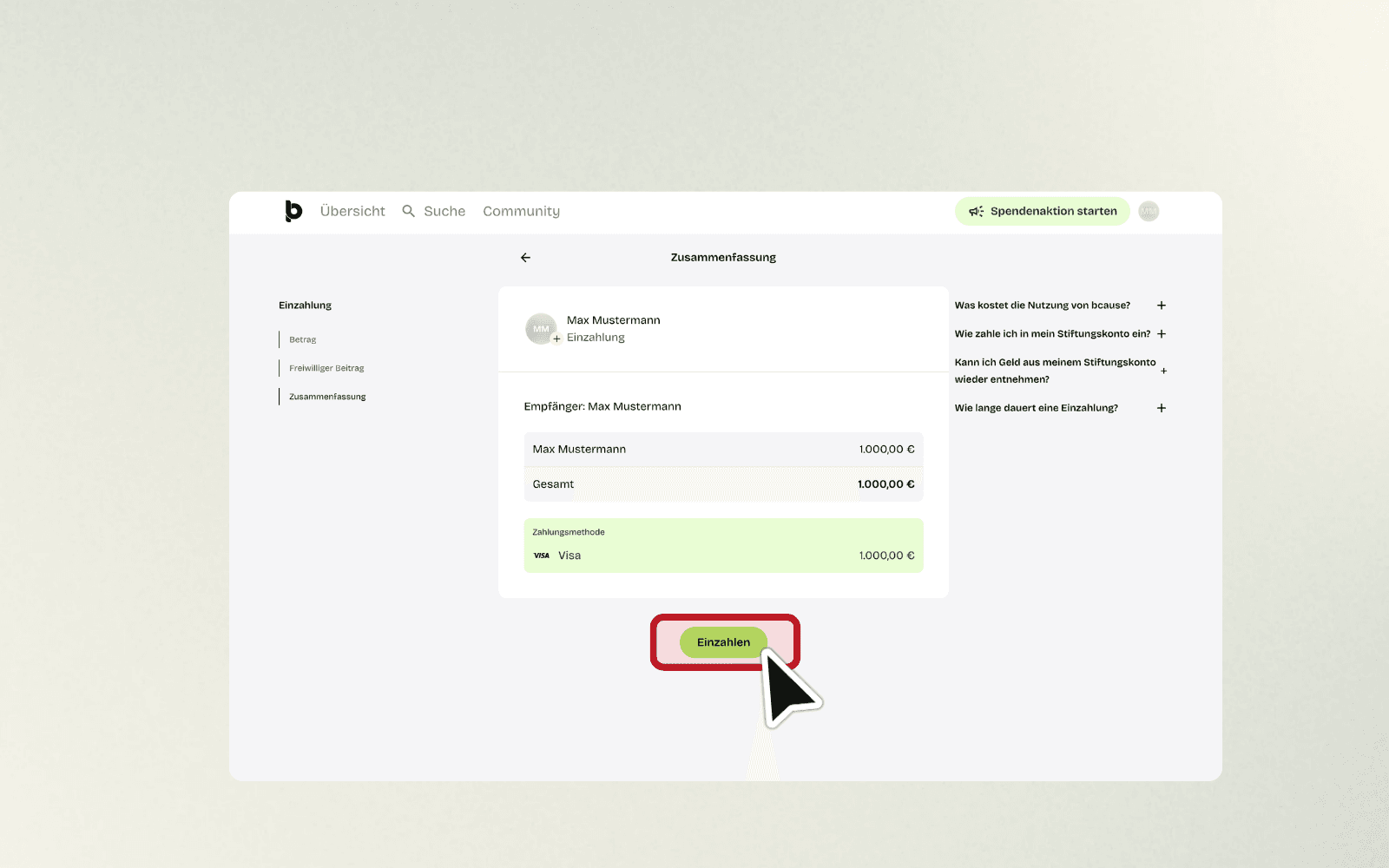
You will see the summary page again with all the details. Double check everything and click on the green button “Deposit” to complete the transaction.
Step 9: Transaction successfully completed
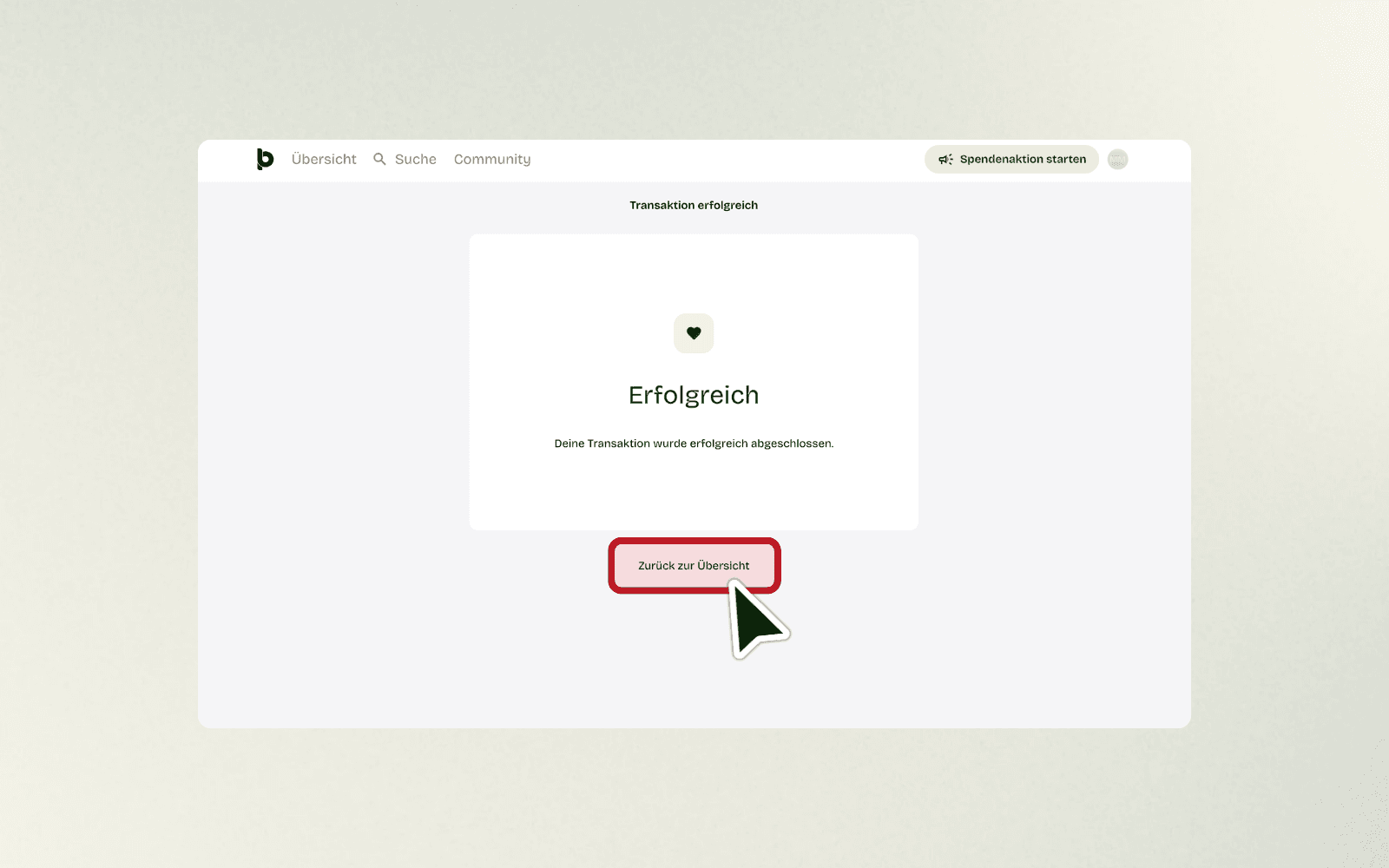
Upon successful completion, you will see a confirmation page with a green check mark and the text “Successful”. Below it, it says: “Your transaction was completed successfully.”
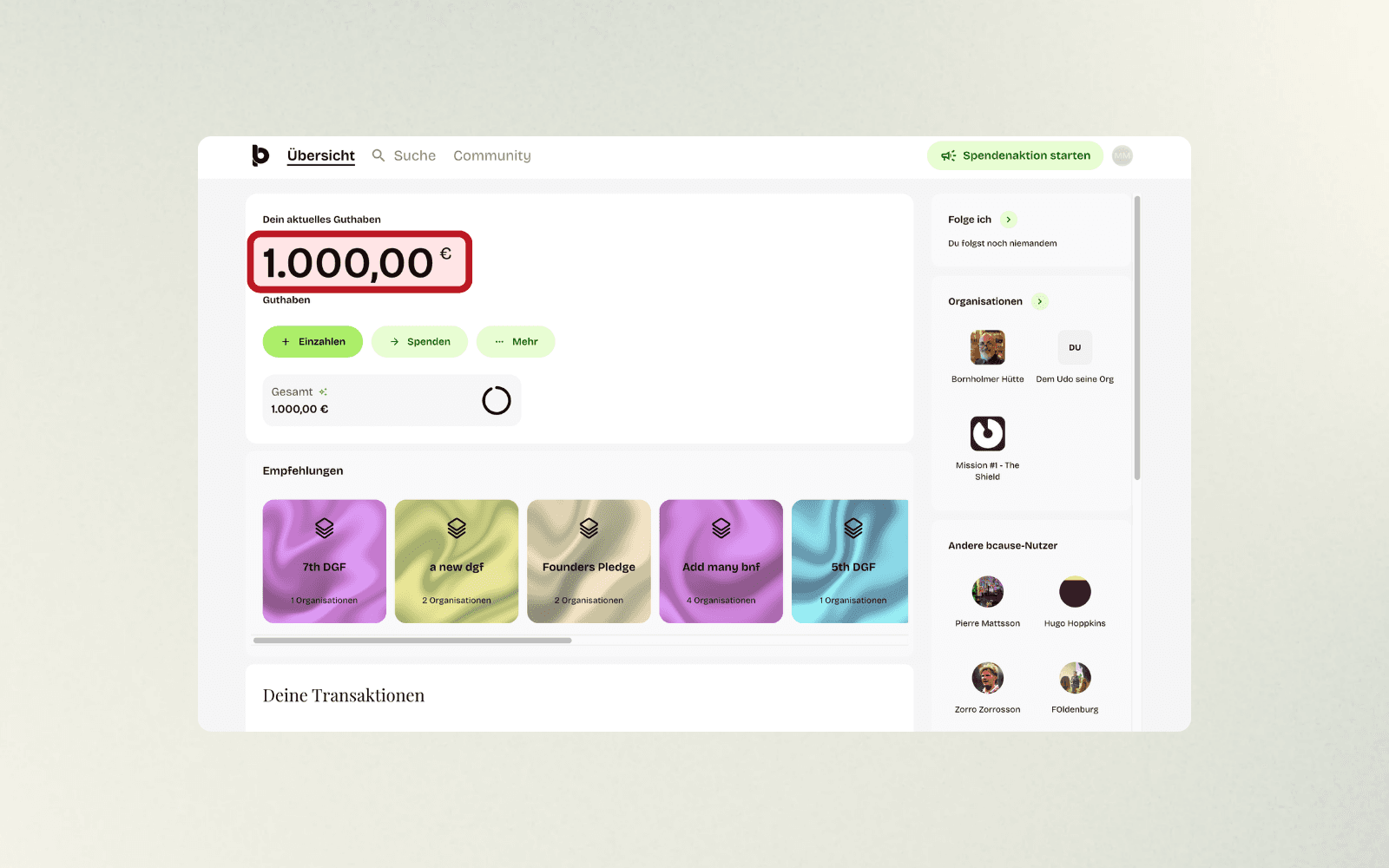
Your balance has been topped up and is immediately available. You can now see on the overview page that your balance has been updated (e.g. €1,000.00).
Step 10: Back to overview
Click on “Back to overview” to return to your balance account. There you can see your updated balance and start donating immediately.
FAQs: Frequently Asked Questions
How long does a deposit take?
Most deposits are processed instantly or within a few minutes. SEPA direct debits can take 1–7 business days. You will receive a confirmation email as soon as your balance is available.
Which payment methods are secure?
All payment methods on bcause are encrypted and secure. Your card details are not stored on bcause servers – they are processed directly via secure payment providers. You can delete a saved payment method at any time.
Can I withdraw my balance later?
No, a payout is not possible. Your deposited balance is a donation and remains strictly reserved for charitable purposes. However, you decide for yourself when and to which organizations you would like to distribute your balance.